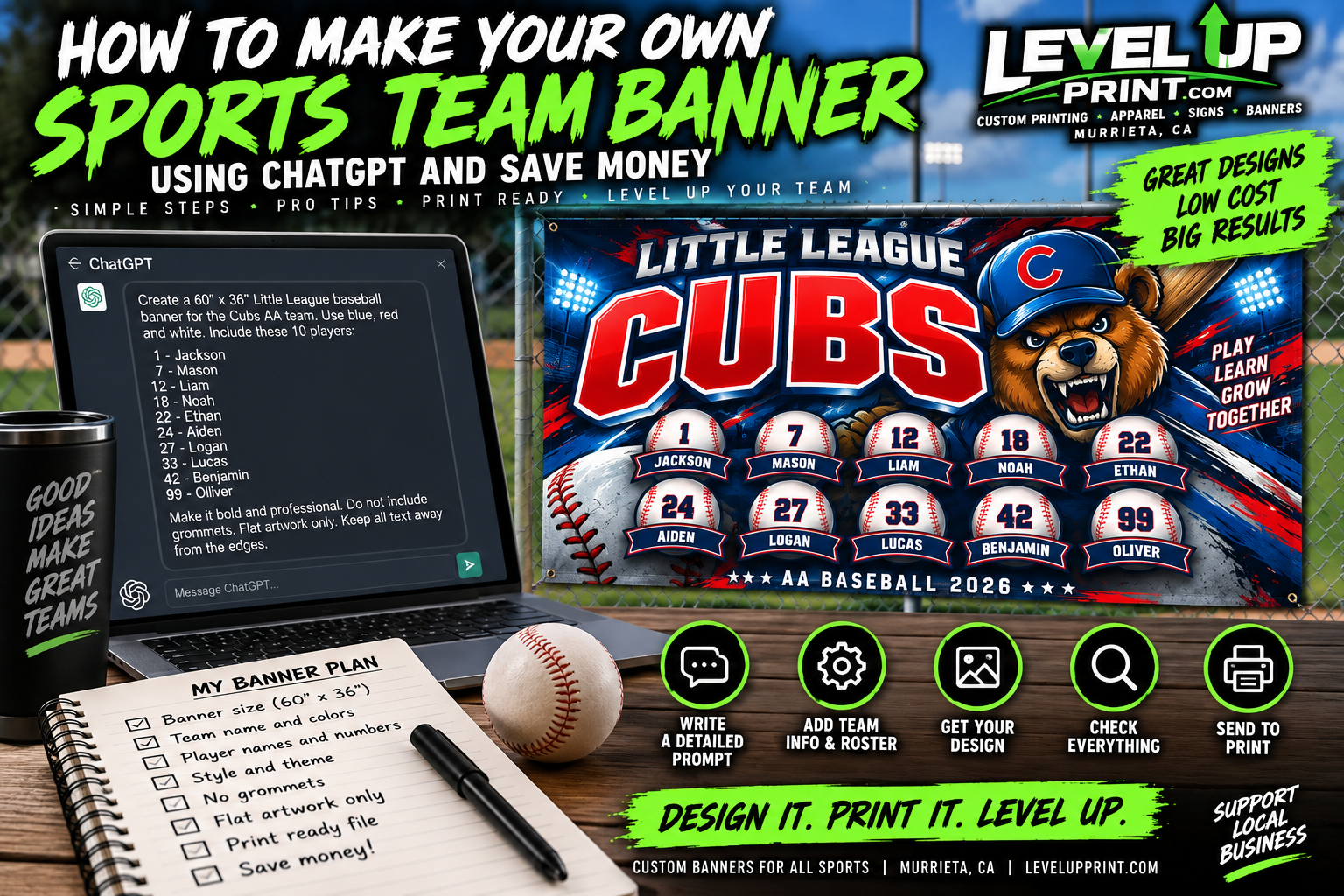
How to Make Your Own Sports Team Banner With ChatGPT and Save Money on Design
How to Make Your Own Sports Team Banner With ChatGPT and Save Money on Design Need a custom banner for your baseball, softball, football, soccer,


Whether you’re designing your first business card or refreshing your brand, getting the setup right is crucial. A business card might be small, but it speaks volumes about your professionalism. At Level Up Print we’ve seen every mistake in the book. Here’s how to do it right the first time.
Standard U.S. business card size: 3.5″ x 2″
But that’s just the finished size. You’ll need to set up the document size with bleed to avoid white edges after cutting.
Pro tip:
💡 Set your document size to 3.75″ x 2.25″ — that includes a 0.125″ bleed on each side. You can learn more about on wikipedias business card bleed guidelines
Set your document to 300 DPI (dots per inch). Anything lower can look pixelated or blurry in print.
Avoid pulling logos or graphics from websites—they’re usually only 72 DPI and meant for screens, not print.
Design in CMYK, not RGB.
CMYK (Cyan, Magenta, Yellow, Black) is the color mode used in printing. RGB is for digital screens. Colors can shift if you don’t convert them before exporting.
To prevent font substitutions or missing text:
✅ Outline fonts if using Illustrator
✅ Embed fonts if exporting from Photoshop or InDesign
✅ Avoid crazy script fonts that are hard to read at small sizes
The best file types for print are:
🚫 Avoid Word docs, PowerPoint files, or anything web-based (Canva exports should still be saved as PDFs with bleed).
Before sending your file:
✅ Are your margins set correctly?
✅ Is your text readable and within the safe zone?
✅ Are all images high-res and CMYK?
✅ Are fonts outlined or embedded?
✅ Did you include bleed?
If you’re unsure, email us for a free template. We’ve done the setup for you—just drop in your design and go.
Setting up your business card properly saves you from costly reprints and embarrassing errors. And if you’re not sure it’s right? No worries—we offer free file checks and proofing before going to print. Just send your design to support@levelupprint.com or drop by our Murrieta shop.
Your business card is your first impression—make it count.
How to Make Your Own Sports Team Banner With ChatGPT and Save Money on Design Need a custom banner for your baseball, softball, football, soccer,
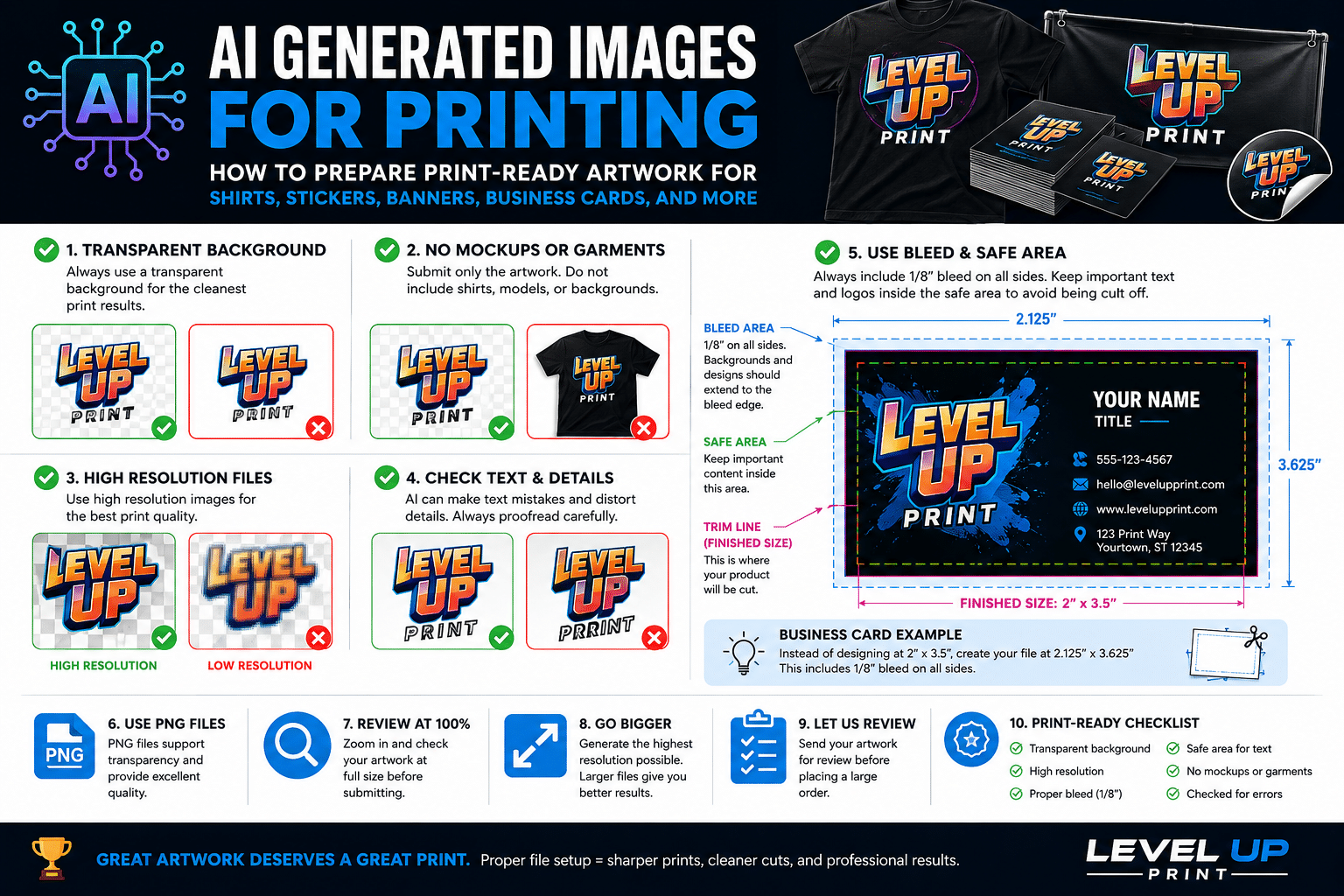
Artificial intelligence has made it easier than ever to create custom artwork for t-shirts, stickers, banners, signs, business cards, postcards, and promotional products. With just
EXCELLENT Based on 151 reviews
 Posted on Google
 Juni BrownWhen you are ready to LEVEL UP your printing needs.....There is only one place to contact if you are looking for professionalism, accuracy, quality and the utmost customer service. Ask for Kevin! @ levelupprint.comPosted on Google
 Jenny BercasioKevin provided the most superb customer service we have ever received in our life—and we say that with all seriousness! I reached out to Kevin and mentioned that we wanted to speak with someone live. He immediately called me. Kevin and I spent the entire afternoon and into the evening discussing the products and my requested orders. Since this was our first experience ordering these types of products, Kevin took the time to explain everything to me. What impressed us the most was that Kevin was not just trying to make a sale. He genuinely wanted us to understand the products we were ordering, including the pros and cons of each option. He gave us his expert opinion, answered every question we had, and taught us so much throughout the process. The checkout process was easy, simple, and straight to the point. Kevin clearly explained what we could expect regarding production and delivery. He told us the products would be completed by Thursday—but to our surprise, on Wednesday between 2:30–3:00 PM, Kevin personally delivered our products straight to our door! We honestly cannot fully explain how we felt. Kevin’s personal delivery took our excitement and enthusiasm to an entirely different level! My husband and I have our Saturday gig coming up, and he made sure we had everything with plenty of time to spare. He absolutely did not let us down! Hands down, Kevin deserves recognition for his respect, politeness, honesty, professionalism, vibrant personality, and enthusiasm. We truly only have the best things to say about him! To top off his incredible kindness, Kevin even threw in some specially designed goodies for us. ♥️ We will absolutely continue using Kevin’s services and will highly recommend Kevin and his company, LEVEL UP PRINT.COM, to everyone! Thank you, Kevin, for going above and beyond. You truly LEVEL UP customer service! 🙌🏽♥️ Respectfully & Honored, Jenny & Don BercasioPosted on Google
 Jonathan BieligkDid an excellent job for my company shirts/pollos. Well made! Highly recommend for fast turnaround and good work.Posted on Google
 Fernando vazquezGreat customer service, fast response and also so grateful because they make my order ready with rush time and they are very helpful, they delivered my order (because we’re local) this is the first time and we are using this company to create more merchandise, for customers please don’t forget to tip them, a few dollars or a good tip always appreciated, thanks to the team 🔥🔥🔥Posted on Google
 Tim FulkersonThe shirts I ordered came out exactly as I wanted them, I couldn’t be happier, and when they were done, they delivered them to my home. Great service!Posted on Google
 Gwendolyn GainesI honestly do not know where to start 😮 I am a new small catering business on the rise. I was in need of a canopy popup tent with all of the features to pass expectation and approved for several corporate catering platforms. I kept running into brick walls here in the DMV. I contacted Level Up (not knowing we were on different time schedules) no one answered, but my call was returned by Mr Kevin stating there was a missed call from my number “THAT IMMEDIATELY CAUGHT MY ATTENTION” We chatted for a bit, so he could understand what I needed. I’m literally speechless 😶 on how quick this company moves. We started conversing Tuesday 7/28/26 Today is 7/31/26 I HAVE MY COMMERCIAL PROFESSIONAL CANOPY POPUP TENT!!!! IT IS BEAUTIFUL 🤩 exactly what I wanted. They are attentive, consistent and prompt. I am beyond satisfied. GGz southern cravings will DEFINITELY be using them from here on out moving forward. If you need any custom printing ON ANYTHING PLEASE CHECK THESE GUYS OUT!!! They are reasonable. I would post a picture but I’m not that computer savvy, otherwise I would lol 😂 once I get it completely setup with EVERYTHING I will figure how to upload photos.Posted on Google
 Brian KeeferProfessional. Prompt. Solid communication. Great work and delivered when they said they would. Doesn't get any better. They hit all the marks with being a memorable and good experience. If your looking for special treatment, follow through and even delivery, go to them. You will be blown away. Nice to see old school effort put out. Thanks again. Oh, and the little surprise gift bag pushed it way over yhe top. Class act!Posted on Google
 Allan GesmundoLevel up print is an excellent print shop. The owner Kevin went out of his way and dropped by at my house to give me tips on how to effectively press the hats and shirt. Who is doing that? I am very happy with his customer service. Simply above and beyond effort! He also sells hats, tshirts and other merch with absolutely lower prices compared to other online sellers. Thank you Kevin, you really did level up! Highly recommended.Posted on Google
 Primal FunctionAs a small business owner, I highly value quality work and customer service. I recently needed some shirts printed for an upcoming event. After being let down by a couple of other print companies with the deadline rapidly approaching, I discovered Level Up. Kevin not only provided top-notch products, he also finished the job ahead of my requested deadline and was extremely communicative throughout the entire process to ensure everything was done according to my preferences. I am beyond grateful for Level Up Print and certainly know who to call for future print jobs.Posted on Google
 Ernestina Garcia100% recommended, best customer service, friendly and reliable.Verified by TrustindexTrustindex verified badge is the Universal Symbol of Trust. Only the greatest companies can get the verified badge who has a review score above 4.5, based on customer reviews over the past 12 months. Read more
