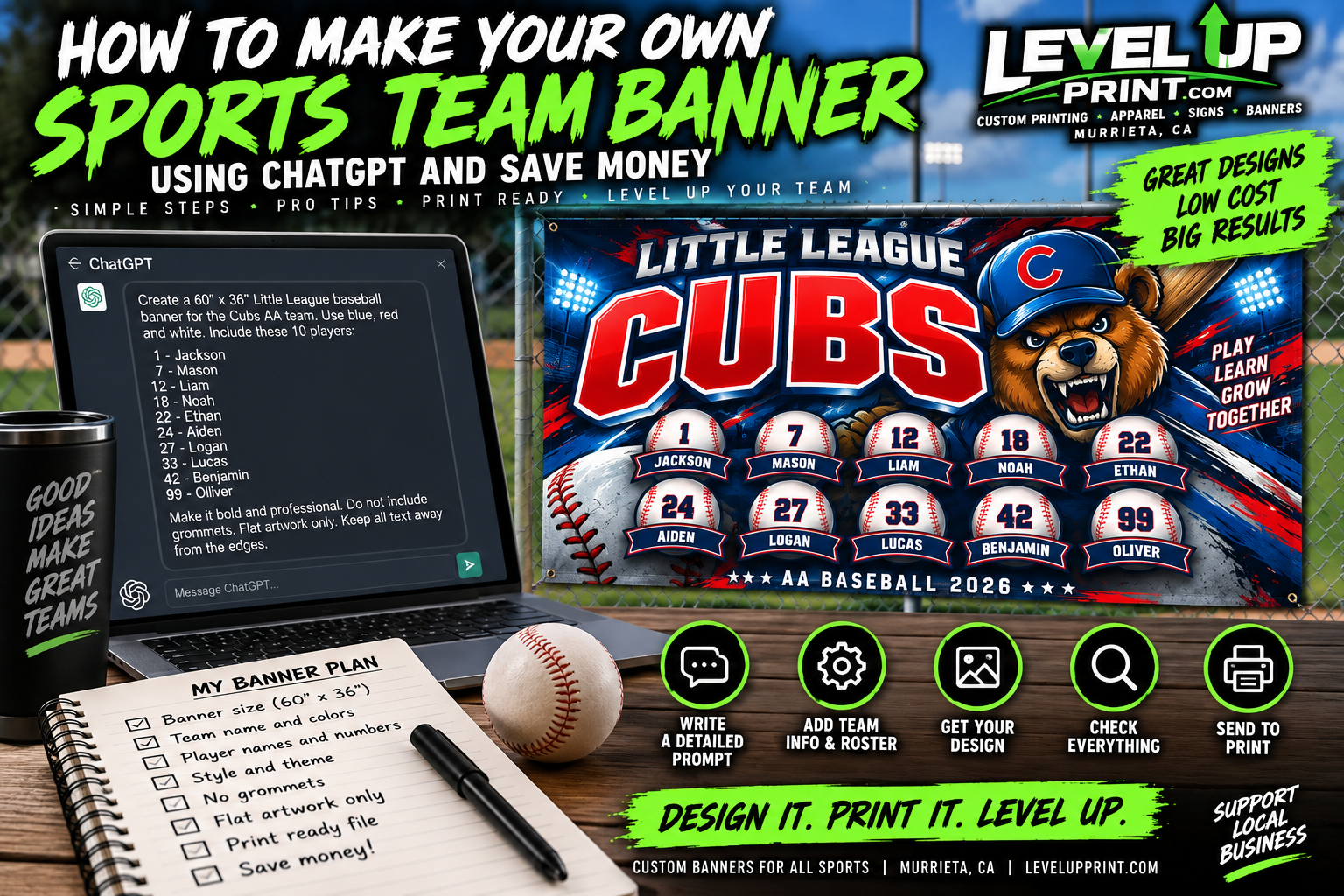
How to Make Your Own Sports Team Banner With ChatGPT and Save Money on Design
How to Make Your Own Sports Team Banner With ChatGPT and Save Money on Design Need a custom banner for your baseball, softball, football, soccer,

Artificial intelligence has made it easier than ever to create custom artwork for t-shirts, stickers, banners, signs, business cards, postcards, and promotional products. With just a few words, AI can generate amazing-looking graphics in seconds. While these images often look fantastic on a phone or computer screen, many are not ready for professional printing.
At Level Up Print, we review customer artwork every day and have noticed several common issues that can affect the quality of the final product. Whether you’re ordering custom apparel, stickers, decals, banners, signs, marketing materials, or event displays, taking a few extra steps before submitting your artwork can help ensure the best possible results.
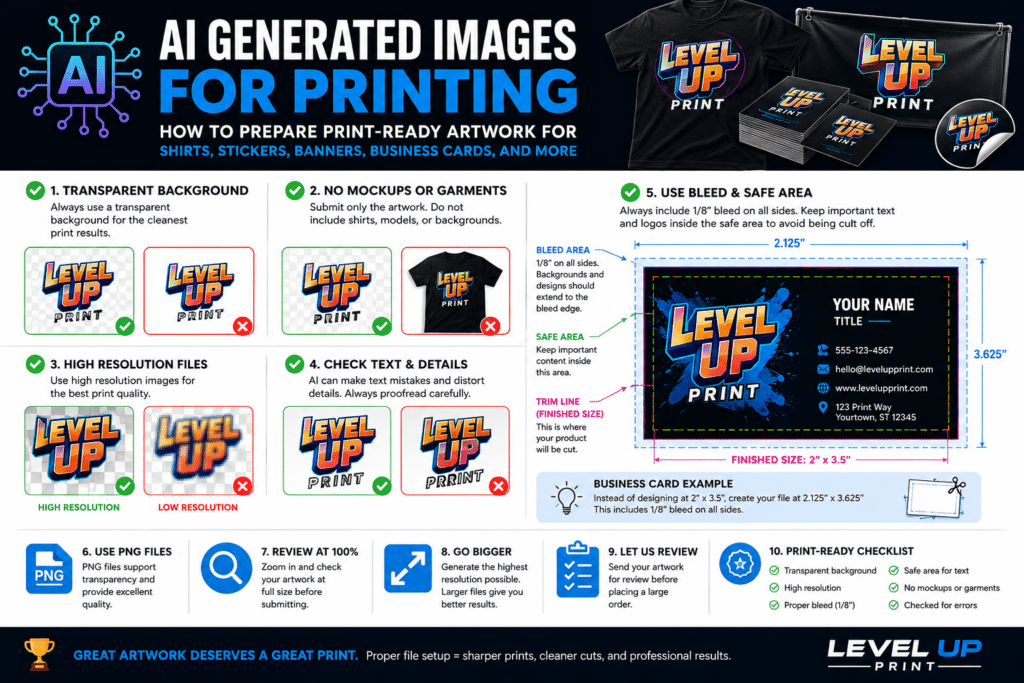
One of the most common problems with AI-generated artwork is unwanted backgrounds.
Many AI image generators create designs with white, black, gray, or colored backgrounds. While these backgrounds may blend into the image on a screen, they often become very noticeable when printed.
For apparel, stickers, decals, and many promotional products, a transparent background is usually required.
When creating artwork with AI, include prompts such as:
• Transparent background
• PNG with transparent background
• No background
• Isolated artwork
• Cutout design
Providing artwork with a transparent background eliminates unnecessary editing and produces a cleaner final product.
AI-generated images frequently display artwork printed on shirts, hoodies, hats, banners, or other products. While these mockups are excellent for marketing and previews, they cannot be used for production.
Your printer needs the actual artwork file, not a picture of the artwork on a product.
Do not submit files that include:
• Shirts
• Hoodies
• Hats
• Models
• People
• Product mockups
• Background scenes
• Wrinkles
• Fabric textures
• Hangers
• Shadows
Instead, provide the artwork by itself on a transparent background.
Many AI-generated images are only 1024 x 1024 pixels. While they may look sharp on a phone, they often become blurry when enlarged for printing.
For the best results:
• Small shirt graphics should be at least 3000 pixels wide
• Large shirt graphics should be at least 4500 pixels wide
• Large banners should be created at final size whenever possible
• Stickers should be at least 1000 pixels wide
• Signs and posters should be designed with printing in mind from the beginning
When it comes to print files, larger is usually better.
AI image generators have improved dramatically, but text remains one of their biggest weaknesses.
Always double-check:
• Business names
• Phone numbers
• Website addresses
• Event dates
• Slogans
• Product information
• Political campaign names
Misspelled or distorted text is one of the most common issues found in AI-generated artwork.
If your design contains important text, consider adding it separately in a design program rather than relying on AI to generate it.
AI often creates details that look correct at first glance but become obvious when printed.
Inspect your artwork carefully for:
• Extra fingers
• Missing fingers
• Distorted hands
• Uneven eyes
• Warped logos
• Misshapen vehicles
• Strange background objects
• Odd shadows
• Inconsistent proportions
Zoom in and review your artwork at full size before submitting it for production.
Many customers place logos, text, and important design elements too close to the edge of their artwork.
Always leave space around:
• Logos
• Faces
• QR codes
• Text
• Important graphics
This safety margin helps prevent accidental trimming during production.
For stickers and printed products, important elements should never sit directly on the cut line.
One of the most important concepts in print design is bleed.
Bleed is extra artwork that extends beyond the final cut size. It allows printers to trim products accurately without leaving unwanted white edges.
Most printed products require a bleed of 1/8 inch (0.125″) on all sides.
A common mistake is designing a business card at the finished size of 2″ x 3.5″.
While that is the final trimmed size, it does not include bleed.
Instead, your artwork should be built at:
Finished Size:
2″ x 3.5″
Artwork Size With Bleed:
2.125″ x 3.625″
Background colors, photos, patterns, and design elements should extend all the way to the outer bleed edge.
In addition to bleed, every design should include a safe area.
Important elements such as:
• Names
• Phone numbers
• Email addresses
• Website URLs
• Logos
• QR codes
• Social media handles
Should remain at least 1/8 inch inside the finished trim size.
This helps prevent important information from being cut off during production.
Some of the most common file setup errors include:
• No bleed included
• Text placed too close to the edge
• Backgrounds not extending into the bleed area
• Crop marks without bleed
• Using finished size instead of artwork size
Most printed products require bleed, including:
• Business cards
• Flyers
• Postcards
• Door hangers
• Brochures
• Rack cards
• Greeting cards
• Menus
• Presentation folders
• Stickers
• Labels
• Packaging
• Book covers
• Posters
If your design has color, images, or graphics that extend to the edge, bleed is almost always required.
For most AI-generated artwork, PNG files provide the best results.
Benefits include:
• Transparent backgrounds
• High image quality
• Easy compatibility
• No visible background boxes
For professional artwork, we also accept:
• AI
• EPS
• SVG
• PSD
Vector files are preferred whenever available because they can be enlarged without losing quality.
Computer screens display images using light, while printers reproduce images using ink.
An image that looks vibrant on a screen may not print the same way if it was generated at a low resolution or contains poor-quality details.
Always zoom into your artwork before submitting it.
If it appears blurry or pixelated on your screen, it will likely print blurry as well.
When using AI tools such as ChatGPT, Midjourney, Ideogram, Adobe Firefly, Flux, or other image generators, always generate the highest resolution version available.
You can always make a large image smaller.
You cannot add missing detail to a small image later.
Starting with a larger file gives your printer much more flexibility and typically results in a better final product.
Before placing a large order, it’s always a good idea to have your printer review the artwork.
At Level Up Print, we can help identify:
• Resolution issues
• Transparency problems
• Bleed setup errors
• Cut line concerns
• Color issues
• Printability challenges
• File preparation problems
Finding these issues before production can save time, money, and frustration.
For the highest quality results, your artwork should be:
• PNG format
• Transparent background
• High resolution
• 300 DPI or higher
• Properly sized for the product
• Include 1/8 inch bleed when required
• Have important content inside the safe area
• Free of mockups and garments
• Free of unwanted shadows
• Free of watermarks
• Carefully inspected for AI mistakes
• Ready for production
AI is an incredible tool for creating artwork, but creating artwork and preparing artwork for printing are two very different things.
Taking the time to use a transparent background, generate high-resolution files, include proper bleed, keep text within the safe area, and inspect the artwork for errors can make a significant difference in the final product.
Whether you’re ordering custom shirts, stickers, decals, banners, business cards, postcards, signs, event displays, or promotional products, proper file preparation helps ensure professional results.
If you’re unsure whether your AI-generated artwork is ready for production, send it to Level Up Print before placing your order. Our team can review your files and help make sure your project looks its absolute best when it comes off the press.
Visit LevelUpPrint.com to get started on your next custom printing project.
How to Make Your Own Sports Team Banner With ChatGPT and Save Money on Design Need a custom banner for your baseball, softball, football, soccer,
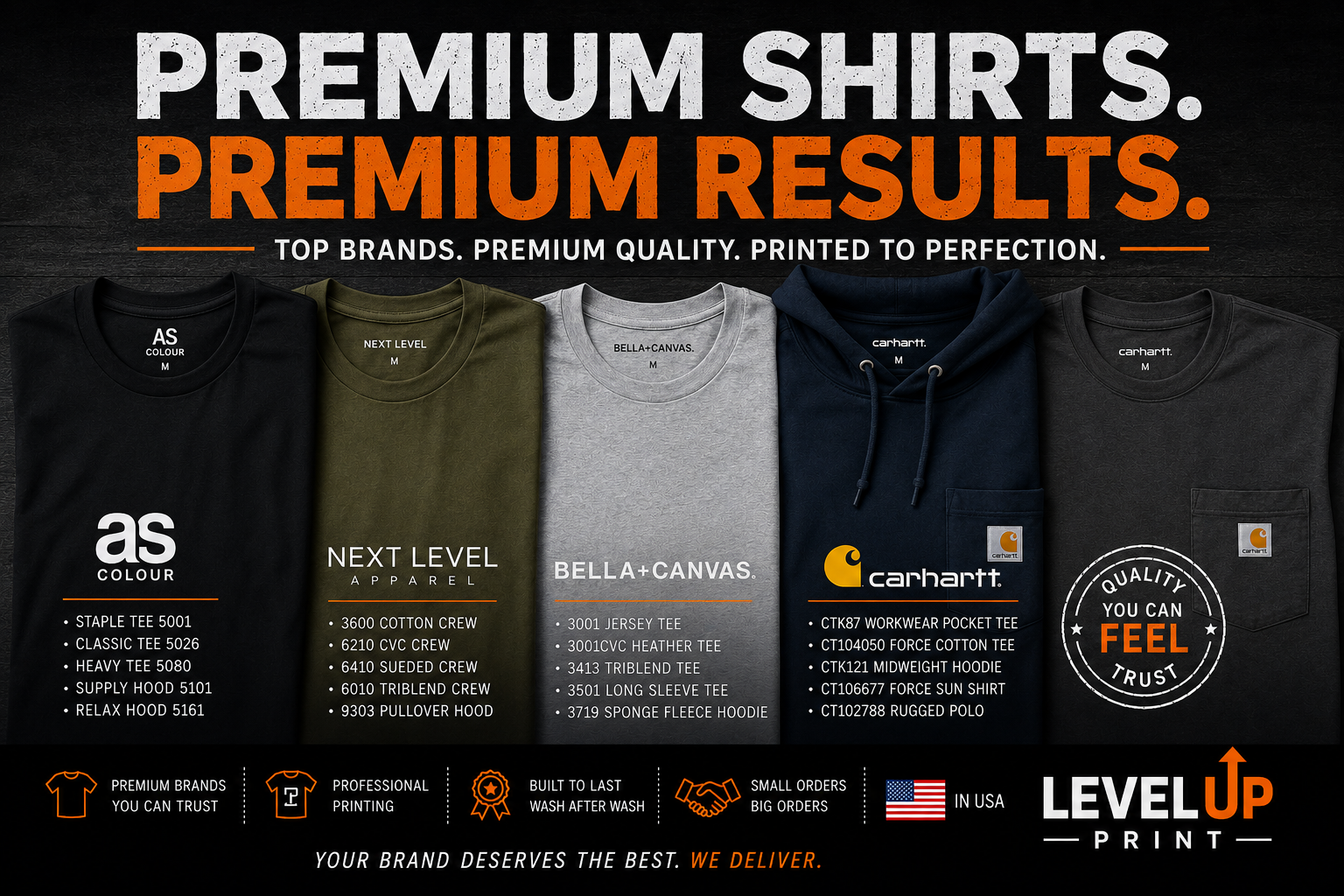
Premium Custom Apparel Starts with Premium Shirts Why Shirt Quality Matters for Your Brand When it comes to custom apparel, the design is only part
EXCELLENT Based on 151 reviews
 Posted on Google
 Juni BrownWhen you are ready to LEVEL UP your printing needs.....There is only one place to contact if you are looking for professionalism, accuracy, quality and the utmost customer service. Ask for Kevin! @ levelupprint.comPosted on Google
 Jenny BercasioKevin provided the most superb customer service we have ever received in our life—and we say that with all seriousness! I reached out to Kevin and mentioned that we wanted to speak with someone live. He immediately called me. Kevin and I spent the entire afternoon and into the evening discussing the products and my requested orders. Since this was our first experience ordering these types of products, Kevin took the time to explain everything to me. What impressed us the most was that Kevin was not just trying to make a sale. He genuinely wanted us to understand the products we were ordering, including the pros and cons of each option. He gave us his expert opinion, answered every question we had, and taught us so much throughout the process. The checkout process was easy, simple, and straight to the point. Kevin clearly explained what we could expect regarding production and delivery. He told us the products would be completed by Thursday—but to our surprise, on Wednesday between 2:30–3:00 PM, Kevin personally delivered our products straight to our door! We honestly cannot fully explain how we felt. Kevin’s personal delivery took our excitement and enthusiasm to an entirely different level! My husband and I have our Saturday gig coming up, and he made sure we had everything with plenty of time to spare. He absolutely did not let us down! Hands down, Kevin deserves recognition for his respect, politeness, honesty, professionalism, vibrant personality, and enthusiasm. We truly only have the best things to say about him! To top off his incredible kindness, Kevin even threw in some specially designed goodies for us. ♥️ We will absolutely continue using Kevin’s services and will highly recommend Kevin and his company, LEVEL UP PRINT.COM, to everyone! Thank you, Kevin, for going above and beyond. You truly LEVEL UP customer service! 🙌🏽♥️ Respectfully & Honored, Jenny & Don BercasioPosted on Google
 Jonathan BieligkDid an excellent job for my company shirts/pollos. Well made! Highly recommend for fast turnaround and good work.Posted on Google
 Fernando vazquezGreat customer service, fast response and also so grateful because they make my order ready with rush time and they are very helpful, they delivered my order (because we’re local) this is the first time and we are using this company to create more merchandise, for customers please don’t forget to tip them, a few dollars or a good tip always appreciated, thanks to the team 🔥🔥🔥Posted on Google
 Tim FulkersonThe shirts I ordered came out exactly as I wanted them, I couldn’t be happier, and when they were done, they delivered them to my home. Great service!Posted on Google
 Gwendolyn GainesI honestly do not know where to start 😮 I am a new small catering business on the rise. I was in need of a canopy popup tent with all of the features to pass expectation and approved for several corporate catering platforms. I kept running into brick walls here in the DMV. I contacted Level Up (not knowing we were on different time schedules) no one answered, but my call was returned by Mr Kevin stating there was a missed call from my number “THAT IMMEDIATELY CAUGHT MY ATTENTION” We chatted for a bit, so he could understand what I needed. I’m literally speechless 😶 on how quick this company moves. We started conversing Tuesday 7/28/26 Today is 7/31/26 I HAVE MY COMMERCIAL PROFESSIONAL CANOPY POPUP TENT!!!! IT IS BEAUTIFUL 🤩 exactly what I wanted. They are attentive, consistent and prompt. I am beyond satisfied. GGz southern cravings will DEFINITELY be using them from here on out moving forward. If you need any custom printing ON ANYTHING PLEASE CHECK THESE GUYS OUT!!! They are reasonable. I would post a picture but I’m not that computer savvy, otherwise I would lol 😂 once I get it completely setup with EVERYTHING I will figure how to upload photos.Posted on Google
 Brian KeeferProfessional. Prompt. Solid communication. Great work and delivered when they said they would. Doesn't get any better. They hit all the marks with being a memorable and good experience. If your looking for special treatment, follow through and even delivery, go to them. You will be blown away. Nice to see old school effort put out. Thanks again. Oh, and the little surprise gift bag pushed it way over yhe top. Class act!Posted on Google
 Allan GesmundoLevel up print is an excellent print shop. The owner Kevin went out of his way and dropped by at my house to give me tips on how to effectively press the hats and shirt. Who is doing that? I am very happy with his customer service. Simply above and beyond effort! He also sells hats, tshirts and other merch with absolutely lower prices compared to other online sellers. Thank you Kevin, you really did level up! Highly recommended.Posted on Google
 Primal FunctionAs a small business owner, I highly value quality work and customer service. I recently needed some shirts printed for an upcoming event. After being let down by a couple of other print companies with the deadline rapidly approaching, I discovered Level Up. Kevin not only provided top-notch products, he also finished the job ahead of my requested deadline and was extremely communicative throughout the entire process to ensure everything was done according to my preferences. I am beyond grateful for Level Up Print and certainly know who to call for future print jobs.Posted on Google
 Ernestina Garcia100% recommended, best customer service, friendly and reliable.Verified by TrustindexTrustindex verified badge is the Universal Symbol of Trust. Only the greatest companies can get the verified badge who has a review score above 4.5, based on customer reviews over the past 12 months. Read more
